Staring at a screen all day while juggling notifications, meetings, and mounting to-do lists drains energy fast. The right productivity device can cut through the chaos by handling specific friction points—whether that’s poor audio quality killing your focus during calls, wrist pain from hours of mouse work, or sleep deprivation sabotaging your sharpness the next morning.
I tested a range of the best productivity gadgets to find tools that actually solve daily workflow problems instead of adding more clutter to your desk. From ergonomic peripherals that reduce physical strain to wearables that optimize rest cycles, each device on this list earned its spot by delivering measurable improvements in how I work and recover. Some excel at eliminating distractions, others streamline repetitive tasks, and a few focus on the often-overlooked link between rest quality and daytime performance.
This isn’t about chasing the latest gadgets that promise to transform productivity—it’s about identifying which devices genuinely reduce friction in your specific routine. I’ll cover what each tool does well, where it falls short, and who benefits most from adding it to their setup.
1. Logitech MX Master 3S – Best for precision control and ergonomic comfort; excels in multi-device switching but is pricey for casual users.
The Logitech MX Master 3S combines exceptional comfort with features that actually matter for daily work. I found the ergonomic shape with its thumb rest genuinely reduces hand fatigue during long sessions.
The standout feature is MagSpeed scrolling, which lets you fly through lengthy documents with precision or switch to line-by-line control when needed. The 8000 DPI sensor means accurate tracking on virtually any surface, including glass.
Where this mouse truly shines is multi-device workflow. You can connect up to three devices and switch between your laptop, tablet, and desktop with a single button press. No more unplugging and reconnecting.
The downsides are real. It’s expensive compared to standard mice, and people with smaller hands may struggle with the grip. The design favors palm grip users specifically.
This mouse makes sense for professionals who work across multiple devices daily and spend enough hours at their desk to justify the investment. If you’re casually browsing and checking email, simpler options exist.
2. Sony WH-1000XM5 – Top-tier noise-cancelling headphones to drown distractions; great battery life but bulkier than usual.
I included the Sony WH-1000XM5 because they deliver exceptional noise cancellation that actually blocks out office chatter, airplane engines, and background hum without turning everything into a vacuum. When I need deep focus, these headphones create a quiet bubble that makes distractions disappear.
The 30-hour battery life means I can work through multiple days without hunting for a charger. Call quality stands out too—people on the other end hear me clearly even in noisy environments, which matters during back-to-back video meetings.
The redesigned shape looks sleeker than previous models, though the headphones don’t fold as compactly, so they take up more space in a bag. The case is noticeably larger than what came with the XM4, which can be annoying for minimal packers.
These work best for people who spend long stretches working in shared spaces or travel frequently. If you need uninterrupted concentration and don’t mind carrying slightly bulkier gear, the XM5 delivers consistent performance that justifies the investment.
3. Remarkable 2 Tablet – Ideal for handwriting enthusiasts who want distraction-free digital note-taking; limited app ecosystem applies.
The reMarkable 2 is an ultra-thin e-ink tablet designed to replicate the feel of writing on paper without the distractions of a traditional tablet. It stands out as one of the best distraction-free note-taking devices because there are no notifications, apps, or browser temptations.
The paper-like writing experience is its biggest strength. The screen mimics real paper texture, and the latency is minimal enough that handwriting feels natural. I found this particularly useful for long writing sessions where I wanted to think clearly without reaching for my phone.
The drawbacks are significant though. Cloud syncing, handwriting-to-text conversion, and Google Drive integration require a $2.99/month subscription. Without it, you’re limited to USB transfers and email exports. There’s also no web browser, note-sharing apps, or multimedia support.
This tablet works best for students, academics, and professionals who prioritize focused writing over versatility. If you need a digital notebook that eliminates app overload, this delivers exactly that.
4. Oura Ring Generation 3 – Sleek sleep and readiness tracker to boost productivity through better rest insights; not a full fitness tracker
The Oura Ring Generation 3 made this list because quality sleep directly impacts daily performance, and this ring tracks rest patterns without the bulk of a watch. It’s a small, discreet ring that monitors sleep stages, heart rate variability, and body temperature to generate a daily readiness score.
The biggest strength is its advanced sleep tracking capabilities that help you understand recovery patterns. I found the readiness insights genuinely useful for deciding when to push hard at work versus when to ease up. The ring also tracks stress and provides actionable recovery recommendations.
The main drawback is that it requires a monthly subscription for full functionality, and it’s not designed as a comprehensive fitness tracker. You won’t get detailed workout metrics or GPS tracking.
This works best for professionals who want to optimize energy and focus through better sleep habits rather than athletes needing extensive exercise data. It’s ideal if you find wrist wearables uncomfortable during sleep or prefer something less noticeable throughout the day.
5. Microsoft Surface Pro – Versatile 2-in-1 for those needing a powerful laptop and tablet combo; slightly heavy to carry all day.
The Surface Pro combines tablet portability with laptop functionality, making it ideal when you need both form factors without carrying two devices. I found this particularly useful for switching between typing reports and annotating PDFs with the optional Surface Pen.
The Snapdragon X Plus (8 Core) processors deliver solid performance for multitasking between productivity apps, video calls, and light content creation. The 13-inch touchscreen is sharp and responsive, making touch navigation feel natural rather than tacked on.
Battery life holds up well through a full workday, though pushing it with demanding apps will drain it faster. The built-in kickstand adjusts to multiple angles, which beats propping tablets against random objects.
The main drawback is weight. At around 1.5-2 pounds depending on the configuration, it feels heavier than dedicated tablets when holding it one-handed for extended reading or sketching sessions. Add the Type Cover keyboard, and you’re carrying more than some lightweight laptops.
This works best for professionals who genuinely need both laptop and tablet modes throughout their day—consultants presenting to clients, designers sketching concepts, or anyone toggling between keyboard work and stylus input.
6. Ember Temperature Control Mug 2 – Keeps your coffee at the perfect sip temperature; battery life means occasional recharging is needed
The Ember Temperature Control Smart Mug solves a problem I didn’t realize bothered me until I tried it: lukewarm coffee halfway through my morning routine.
It maintains your drink between 120°F and 145°F, which means no more microwaving or rushing through a cup before it cools. The app lets you dial in your exact preference, though it defaults to 135°F if you skip the setup.
Battery life lasts about 80 to 90 minutes off the coaster, depending on the size you choose. That’s enough for most work sessions, but you’ll need to keep it on the included charging coaster for all-day warmth. It’s one more thing to plug in and remember.
The real limitation is cost. At over $100, it’s a significant investment for what amounts to a heated mug.
This works best for slow sippers who work at a desk and can keep the mug on its coaster most of the day.
7. Keychron K4 HE Wireless Mechanical Keyboard – Delivers tactile feedback and wireless convenience; loud clicks might distract coworkers
The Keychron K4 features a compact 96% layout that fits a full number pad without taking up your entire desk. I appreciate that it maintains all 100 essential keys while staying travel-friendly.
The keyboard connects to up to three devices via Bluetooth 5.1, letting me switch between my laptop, tablet, and phone instantly. The 4000 mAh battery lasts weeks between charges during normal use. Hot-swappable versions let you change switches without soldering if you want a different typing feel later.
The main drawback is noise. Mechanical switches produce audible clicks that can annoy nearby coworkers in quiet offices. I also found that earlier versions lack programmable keys and advanced software, though the Version 3 supports QMK for key remapping.
This keyboard works best for remote workers or anyone with a private workspace who values typing comfort and wants wireless flexibility across multiple devices.
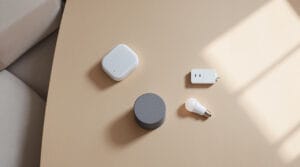
8. Philips Hue Smart Lighting – Customizable lighting to reduce eye strain and improve focus; setup can be fiddly without a hub.
I added Philips Hue to my desk setup because proper lighting directly affects how long I can work without fatigue. The ability to adjust color temperature throughout the day makes a noticeable difference during long work sessions.
The biggest strength is customization. I can set warm, dim lighting for early morning emails, then shift to cooler, brighter tones when I need to focus on detailed work. The bulbs reduce eye strain compared to standard LEDs, which matters when you’re staring at screens for hours. You can control everything through an app or voice commands with Alexa or Google Home.
The main drawback is the initial setup complexity. Traditional Philips Hue systems use a bridge that connects up to 50 devices, but getting everything configured takes patience. Without the bridge, you’ll have limited functionality and fewer device connections.
This works best for people who spend extended hours at a desk and want to optimize their lighting environment without constantly adjusting manual switches.
9. Withings Sleep Analyzer – Non-wearable sleep tracker with snore detection to optimize rest cycles; requires placement under mattress
The Withings Sleep Analyzer earns its spot because it tracks sleep without requiring you to wear anything at all. You slide it under your mattress once during setup, and it monitors sleep cycles, heart rate, and snoring throughout the night.
The device detects light, deep, and REM sleep phases while also tracking breathing disturbances and snore patterns. I found the non-wearable design particularly useful for anyone who finds smartwatches or rings uncomfortable during sleep. It provides clinical-grade sleep apnea detection, which sets it apart from basic sleep trackers.
The main drawback is that it only works with one side of the bed. If you share a mattress, your partner needs their own unit for individual tracking.
This works best for people who want detailed sleep insights without wearing devices to bed. It’s ideal if you suspect breathing issues during sleep or want data-driven feedback on snoring patterns without investing in a full sleep study.
10. Anker PowerConf S500 Speakerphone – Crystal-clear audio for remote meetings with noise reduction; limited mic range in large rooms.
The Anker PowerConf S500 Bluetooth speakerphone made this list because it delivers genuinely clear audio for video calls without complicated setup. I can join a Zoom meeting, hit one button, and actually hear everyone without straining.
The real strength here is VoiceRadar 3.0 technology, which eliminates unwanted noise to deliver a more immersive meeting experience. My laptop fan disappears. My dog’s barking gets suppressed. The four-microphone array provides 360° voice pickup, so I can lean back or shift around without fading out.
Having up to 24-hour battery life means I rarely think about charging it, even across multiple days of calls.
This is best for team huddles up to 12 people, where everyone sits within 5-10 feet of the device.
Do These Productivity Gadgets Actually Save Time? (Or Just Distract You?)
The difference between a productivity tool and a shiny distraction comes down to two things: features that eliminate friction in your actual workflow, and whether you’ll realistically carry or use the device when you need it most.
Features That Actually Speed You Up
I’ve tested enough gadgets to know that spec sheets lie. A device saves time only when it removes steps from tasks you do repeatedly.
Instant-on capability matters more than processing power for quick captures. I’ve abandoned tablets that take 8 seconds to wake because my phone is already open by then. Devices that skip login screens or boot directly to your last task cut 20-30 seconds per use, which adds up to hours monthly.
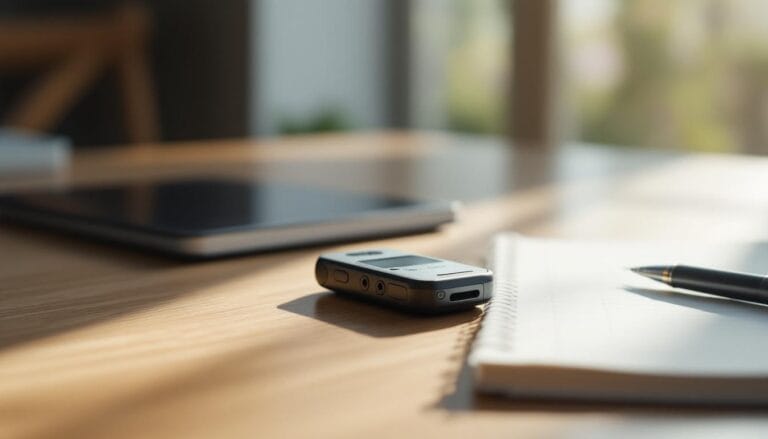
One-touch automation separates smart devices that save time from those that just add apps to manage. Physical buttons programmed for common actions—like a voice recorder with a single record button or an e-ink note-taker that opens to a blank page—beat touchscreen menus every time.
Battery life below 8 hours creates new problems. I avoid devices that need daily charging unless they charge in under 30 minutes. Wireless charging pads sound convenient until you realize you’re constantly checking if the device seated properly.
Portability vs. Power: Finding the Right Balance
Weight above 1.5 pounds means a device stays home. I’ve learned this after buying three “portable” keyboards that lived in my desk drawer because adding them to my bag felt like packing a brick.
Screen size creates a real tradeoff. A 6-inch e-ink reader slips into a jacket pocket but limits your working area. A 10-inch tablet handles spreadsheets but requires a dedicated bag slot. I choose based on my most frequent task: if I’m mostly reading or capturing quick notes, smaller wins.
The best gadgets for modern productivity blend into routines rather than demanding new carrying cases or setup rituals. Folding designs help, but only if they unfold in under 3 seconds and don’t require careful alignment.
Processing power rarely matters for productivity basics. A $200 device that handles text, email, and PDFs instantly beats a $600 powerhouse that’s too heavy to carry daily.
Buying Guide: How to Avoid Gimmicks
I’ve learned that the flashiest productivity device isn’t always the smartest buy. The key is checking if it actually works with what you already own, whether the battery lasts through a real workday, and if your data stays private.
Compatibility With Existing Tools
I always check if a new device syncs with my existing setup before buying. A smart pen that only works with proprietary paper is useless if I prefer digital notebooks. A task management device that doesn’t connect to Google Calendar or Outlook creates more work, not less.
Look for open ecosystem support. Devices that work with multiple platforms give you flexibility. I once bought a productivity tracker that only synced through a desktop app on Windows. I use a Mac. That device now sits in a drawer.
Check the fine print on cloud services too. Some devices require paid subscriptions after the first year just to access your own data. I prioritize tools that offer local storage options or lifetime cloud access.
Red flags to watch for:
- “Works with our exclusive app only”
- Requires specific operating system versions
- No API or third-party integration support
- Subscription required for basic features
Real-World Battery Life (Ignore the Box Claims)
Manufacturers list battery life under ideal conditions that don’t match how I actually use devices. A smartwatch claiming “10 days” might mean 10 days with every feature disabled and the screen barely on.
I look for user reviews that mention battery performance after a month of normal use. The initial charge often lasts longer than subsequent ones. A productivity device that needs charging twice daily creates interruptions instead of preventing them.
Standby time and active use time are different metrics. Some devices advertise 30 days of battery life but that assumes you’re only actively using it for 30 minutes total. I need devices that last through 8-hour workdays with moderate to heavy use.
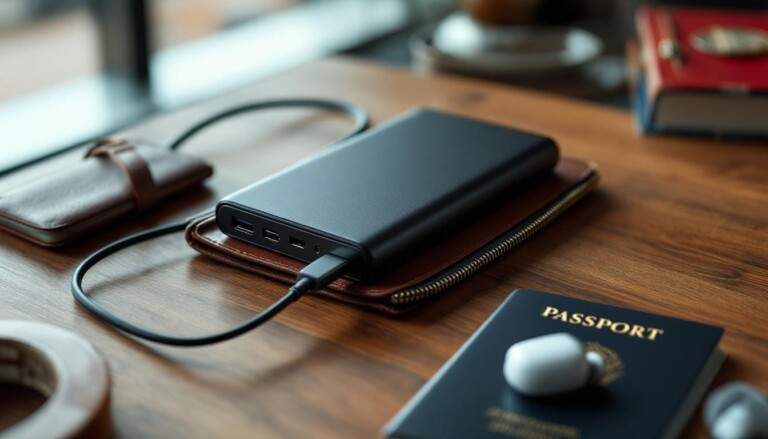
USB-C charging is now my baseline requirement. Proprietary charging cables mean I’m carrying extra accessories or scrambling to find the right cable when the battery dies.
Privacy and Data Security Basics
I check where my productivity data actually goes. Task lists, calendar entries, and notes often contain sensitive work information. Choosing innovative products requires understanding what happens to that data.
Look for devices that offer end-to-end encryption. If the company can read your data, so can hackers or government agencies. I avoid products where the manufacturer has full access to my information.
Check the company’s data retention policy. Some productivity apps keep your data indefinitely, even after you delete your account. I prefer tools that let me export and permanently delete my information.
Questions I ask before buying:
- Is my data encrypted in transit and at rest?
- Can the company access my information?
- Where are servers located?
- What happens to my data if the company shuts down?
Third-party security audits matter more than vague privacy promises in marketing materials.
Frequently Asked Questions
Smart devices promise better productivity, but the real questions come down to cost, compatibility, and whether you actually need another gadget when your phone already does so much.
Is a smart notebook (like Remarkable) actually worth the money?
The Remarkable 2 costs around $400, which feels steep for what’s essentially a digital notepad. I’d say it’s worth it if you’re someone who handwrites constantly—for brainstorming, sketching diagrams, or marking up PDFs—and you’re tired of paper clutter or switching between analog and digital workflows.
The writing feel is genuinely paper-like, and the distraction-free design means no notifications or apps pulling your attention. But if you mostly type notes or only jot things down occasionally, you’re better off with a standard tablet and stylus. The limited app ecosystem means you can’t browse, check email, or use other productivity software.
I found it most valuable for focused reading and annotation sessions. Students or professionals who live in meetings and need clean, searchable handwritten notes get the most value here.
Best budget productivity gadget picks for students?
Students usually need versatility without the premium price tag. I’d skip the high-end options from my list and look at mid-range alternatives instead.
A basic mechanical keyboard and affordable wireless mouse combo runs under $50 and significantly improves laptop typing and navigation. For noise-cancelling on a budget, the Soundcore Space One headphones deliver solid performance around $100—half the price of the Sony WH-1000XM5.
If you need portability and note-taking, consider a standard iPad with an Apple Pencil alternative rather than the Surface Pro 9. You’ll sacrifice some power but gain better app support for student workflows. The Oura Ring doesn’t make sense for most students since cheaper fitness trackers offer more features for less money.
What are the biggest complaints users have about these?
Price comes up constantly. The Logitech MX Master 3S costs over $100 for a mouse, which feels excessive if you’re used to budget peripherals. The Remarkable 2 frustrates people who expect tablet functionality—no web browser, limited cloud sync, and a subscription for extra features.
Sony’s WH-1000XM5 headphones work beautifully but feel bulky for all-day wear, especially if you’re moving around a lot. Some users report pressure headaches during extended sessions.
The Oura Ring misses key fitness features like real-time heart rate display during workouts, disappointing people who want an all-in-one tracker. Microsoft’s Surface Pro 9 draws criticism for its weight when used as a tablet and the fact that the keyboard cover costs extra despite being essential.
Can’t I just use my phone for all of this?
Your phone handles basic productivity tasks fine—calendar, notes, reminders, music. But specialized devices solve specific friction points that phones can’t address well.
You can’t get precise design work or spreadsheet editing done on a phone like you can with the Surface Pro 9. Noise-cancelling quality from phone earbuds doesn’t match dedicated headphones for deep focus sessions. Phones drain battery when used for everything, and constant notifications break concentration even with Do Not Disturb enabled.
The Oura Ring tracks sleep without wearing a watch or keeping your phone on the nightstand, which improves sleep quality itself. The Remarkable 2 eliminates digital distractions entirely while preserving the benefits of handwriting for memory and thinking. I use my phone for quick tasks, but dedicated productivity gadgets reduce friction for sustained work sessions.